
Como Baixar e Usar o Quotex no PC Passo a Passo
📥 Saiba como baixar e usar o Quotex no PC com segurança! Guia completo com requisitos e dicas para operar opções binárias com eficiência e confiança.
Por
Aline Souza
Editado por
Aline Souza
Before jumping into downloading Quotex on your PC, it’s key to understand the basics. Quotex is a trading platform designed for active investors and traders looking to operate efficiently from their desktops. It supports various financial assets like currencies, commodities, and indices.
Make sure your PC meets these minimum requirements:
Operating System: Windows 7 or newer (64-bit preferred)
Processor: At least 1.5 GHz
RAM: 4 GB minimum
Storage: 300 MB free space
Internet Connection: Stable broadband for real-time data
Meeting these specs helps avoid lag or crashes during live trading sessions.
Using Quotex on your PC offers several advantages over mobile or browser versions:
Larger screen space for detailed charts and analysis
Faster processing speeds and better multitasking
Keyboard shortcuts and easier input handling
Ability to run alongside other trading tools or software
This setup is especially useful for traders handling multiple assets or monitoring several indicators simultaneously.
Always download Quotex software from official or trusted platforms to avoid malware. Check for HTTPS and reliable digital signatures. Avoid third-party download sites that could offer tampered versions.
Pro tip: After installing, run a quick antivirus scan and ensure your Windows Defender is active to catch any suspicious activity early.
Have your login credentials handy if you already have an account. If not, registering on their official site beforehand will make the process smoother. Also, close unnecessary applications to free up system resources during installation.
By covering these essential points first, you’ll set yourself up for a hassle-free and secure downloading experience. In the next sections, you’ll learn the step-by-step process to download and install Quotex efficiently and start trading right away.
Before getting into the nuts and bolts of downloading and using Quotex on your PC, it's important to understand what Quotex is and why the PC version could be a game-changer for your trading routine. This sets the stage for a smoother experience and lets you maximize what the platform offers.
Quotex is an online trading platform that focuses on binary options, allowing users to trade a variety of financial assets like stocks, currencies, commodities, and cryptocurrencies. Unlike traditional trading platforms, Quotex is designed for a straightforward approach with a sleek interface, helping traders make quick decisions based on real-time market data. It's especially useful for those looking to engage with short-term trades without the fuss of complicated setups.
Quotex's appeal lies in its simplicity combined with powerful tools like live charts, technical indicators, and flexible trading durations. Traders can place trades with minimal fuss, making it ideal both for newcomers curious about option trading and experienced investors aiming for fast execution.
Using Quotex on a PC offers distinct advantages over mobile or browser-based experiences. For starters, the PC app typically loads faster and tends to be more stable during volatile market conditions. That stability is huge when split-second decisions impact your bottom line.
Plus, the larger screen real estate on a computer makes juggling multiple assets and charts far easier. You can have several windows open side-by-side, tracking various indicators without sacrificing clarity. For example, a trader monitoring both Forex and cryptocurrencies can quickly scan data on different assets without constantly switching tabs.
The PC version also supports more customization options for the workspace — think adjustable layouts and more precise control over chart settings. This can directly translate into better-informed trades.
Running Quotex on your PC means faster access to tools and smoother navigation, which can be a real boon when markets swing.
Finally, the desktop client can sometimes offer better security features compared to a browser, especially if you’re serious about protecting your investments from phishing or malware attacks.
Understanding these points helps you make an informed choice about why downloading Quotex on your PC is worth the extra step. It’s not just about convenience but also performance and control, all of which matter when managing your trades efficiently.
When installing Quotex on your PC, knowing the system requirements upfront can save you plenty of headaches. These requirements ensure the software runs smoothly, lets you navigate the platform without lag, and ultimately helps you trade effectively. For traders, analysts, and consultants especially, a stable and responsive trading platform is non-negotiable because delays can mean missing important market moves.
Quotex isn’t a resource hog, but the basics still matter. To get going, your PC should have at least a dual-core processor with a clock speed around 2.0 GHz or higher. While basic integrated graphics handle Quotex's charting tools, a dedicated graphics card can enhance visual performance if you run multiple apps simultaneously.
You'll need at least 4 GB of RAM, but 8 GB or more is recommended if you plan to multitask or use several indicators together. Don't ignore disk space—installing Quotex requires about 200 MB, but having an extra gig or two ensures the software operates smoothly with room for cache and updates.
On the software side, make sure your PC runs a reliable antivirus program that doesn’t block Quotex processes, as this could interfere with functionality. It’s also wise to keep your software up-to-date, including the latest Microsoft Visual C++ Redistributable packages, which are often required for trading apps.
Quotex’s desktop version primarily supports Windows, focusing on versions 7 and up through Windows 11. This compatibility covers a vast range of PCs, giving you flexibility regardless of whether you’re on an older machine or the latest model.
For example, if your PC runs Windows 10 64-bit, you’re in a good spot—this is probably where Quotex runs best. While the system technically supports 32-bit variants, 64-bit Windows enhances performance and stability, so it’s worth upgrading if you still operate on the older architecture.
Unfortunately, Quotex doesn’t have a dedicated version for macOS as of now. If you’re a Mac user, you’d need to set up a Windows virtual machine or Boot Camp, though that involves more technical setup and might not deliver the most responsive experience.
Bottom line: Confirming your PC's specs and operating system ahead lets you avoid installation hiccups and ensures smooth trading with Quotex. Small checks now can prevent annoying setbacks later.
Getting your hardware and OS in line isn’t just a tech step — it’s the backbone of reliable and fast trading sessions. Make sure your setup ticks these boxes before downloading Quotex to get the most out of the platform.
Downloading Quotex on your PC is the first step to harnessing its full potential for trading and analysis. This guide simplifies the process so you can start using the platform without fuss. Getting the app properly downloaded and installed ensures you won't run into common pitfalls like corrupted files, security issues, or compatibility problems. For example, investors who grab software from unofficial sites risk malware, while incorrect installations can cause frustrating crashes or missing features.
Always grab Quotex from the official website or authorized platforms. This guarantees you get the latest, secure version tailored for Windows PCs. Avoid third-party download sites or random file-sharing links—they often carry outdated versions or worse, malware. To verify authenticity, look for trusted certifications on the website or check user reviews from reliable forums where traders discuss software.
Once you’ve downloaded the installer, running the setup file is straightforward but crucial. Double-click the file to start—if Windows prompts any security warnings, make sure the file source is verified before proceeding. This step loads the installer program which guides you through setting up Quotex on your machine. For instance, a trader might close other applications at this time to free system resources, ensuring a smooth installation.
During setup, you’ll encounter options to customize installation, such as choosing the installation folder or creating desktop shortcuts. Paying attention here helps keep your PC organized—for example, installing Quotex in a dedicated trading software folder lets you find it quickly later. Also, some users prefer auto-start options so Quotex launches with Windows, speeding up workflow. Carefully review these settings before confirming installation to match your trading habits and system setup.
Taking a few extra minutes to download from official sources and adjust installer settings can prevent headaches and keep your PC secure. This approach ensures a smooth launch into your trading activities without technical disruptions.
By following these clear steps, you’ll have Quotex installed reliably, enabling you to focus on what truly matters: making smart trades efficiently from your PC.
Getting started with Quotex on your PC is the first step in making the most of this trading platform. Being comfortable with logging in, setting up your account, and understanding the desktop application's features will put you ahead in your trading journey. These initial steps ensure you trade efficiently, secure your account, and use the tools that Quotex provides without any frustration.
After installing Quotex on your PC, logging in is the gateway to your trading activities. You'll need your registered email and password to access your account. If you’re new, the setup process requires you to create an account by providing basic information like your email address, creating a strong password, and verifying your email. This verification helps protect your account from unauthorized access.
Once logged in, you have the option to enable two-factor authentication (2FA) — a simple but effective security step that adds an extra layer of protection. This feature sends a code to your phone or email every time you log in from a new device, reducing the risk of hacking.
Quotex also lets you set up your account preferences right away, such as choosing your preferred language, trading instruments, and notification settings. Taking a few minutes here can save you time later and make the platform more user-friendly for your specific trading style.
The desktop version of Quotex offers a smooth, intuitive experience tailored for deeper trading analysis and faster execution compared to browser-based use. Once inside, you’ll find a clean interface organized into clear sections: the trading chart, asset list, market news, and your dashboard.
The trading chart is interactive and offers multiple tools like drawing options, technical indicators, and real-time data updates — essential for analyzing trends and making informed trade decisions. For example, you can add moving averages or oscillators directly on your chart to spot potential entry points.
The asset list gives you quick access to various markets like Forex, cryptocurrencies, indices, and commodities. You can customize this list, pin your favorite assets, and monitor their performance at a glance.
Plus, the desktop app supports one-click trading and faster order placements, which can be a big advantage when market conditions change quickly. Notifications keep you updated on your trades and price signals, helping you react promptly.
Starting with Quotex on your PC means setting up a secure account, understanding the layout, and leveraging features designed to give you a competitive edge. This foundation makes your trading experience more productive and less stressful.
Now that you know how to get started, you’re ready to explore Quotex's tools and trade with confidence right from your desktop.
Installing Quotex on your PC usually goes smoothly, but sometimes issues pop up that can slow you down. Knowing how to tackle these problems quickly saves time and keeps your trading uninterrupted. This section covers common installation hurdles and practical ways to fix them, making sure you get Quotex up and running without breaking a sweat.
Download failures are often caused by unstable internet connections or problems at the source server. If your download stalls or doesn’t start, first check your internet speed and stability. Try restarting your router or switching to a wired connection if you use Wi-Fi. Also, make sure you’re downloading Quotex from the official website—third-party sites may offer corrupted or outdated files. Using a VPN can sometimes interfere with downloads, so disable it temporarily if you’re having trouble. If your browser shows a timeout or error message, clearing your cache or trying a different browser might do the trick.
Installation errors might occur due to incompatible system settings or missing permissions. One common issue is lacking administrative rights. Running the installer as an administrator often fixes this—right-click the setup file and select “Run as administrator.” Another cause could be conflicting software like antivirus programs that block installation. Temporarily disabling your antivirus during installation can help, but don’t forget to turn it back on afterward. If the installer crashes or an error code appears, check your PC for enough disk space and proper system specs. Sometimes, updating your operating system or graphics drivers resolves errors related to compatibility.
Security should be your top priority when downloading and installing any trading app. Fake apps or scam websites can trick you into downloads packed with malware. Always confirm that you get Quotex from its official source, which protects you against these risks. Never share your login details with third parties or enter personal info on suspicious sites. Quotex uses encryption to protect your data, but keeping your device updated and running security software adds an extra layer of defense. Remember, if a download or installation seems suspiciously easy or too good to be true, it probably is—trust your instincts and double-check.
Regularly updating your Quotex app and your PC’s antivirus software keeps your system safe and trading smooth. Don’t overlook these simple steps for lasting security.
In short, dealing with installation issues quickly and safely means less downtime and more time focusing on trading smart. By checking your internet, running installers with the right permissions, and sticking to official download sources, you can cut out most headaches before they even start.
📥 Saiba como baixar e usar o Quotex no PC com segurança! Guia completo com requisitos e dicas para operar opções binárias com eficiência e confiança.
💻 Descubra como instalar e usar o aplicativo Quotex para PC! Guia completo com dicas, funcionalidades e segurança para melhorar sua negociação.
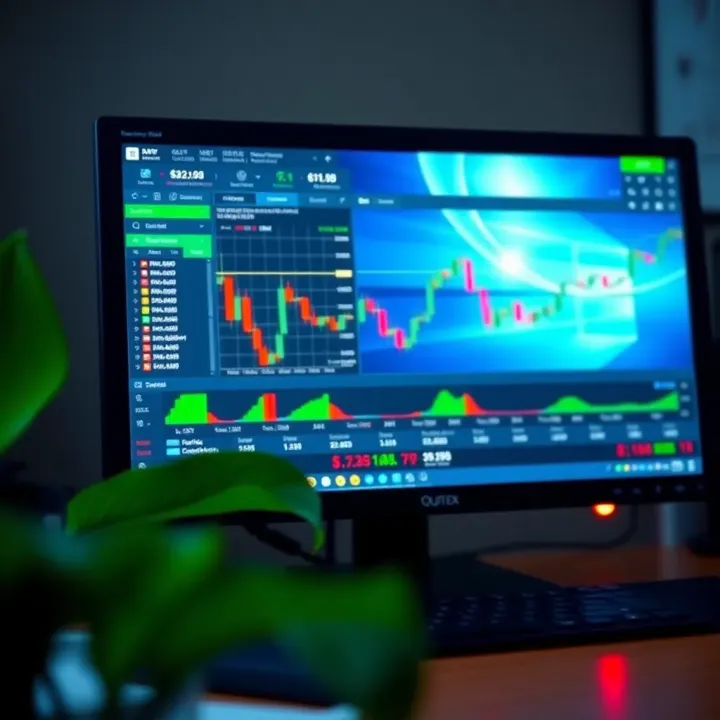
📥 Aprenda a baixar e usar o Quotex no PC com segurança! Guia completo com dicas, requisitos e funcionalidades para operar sem medo. 💻🔒
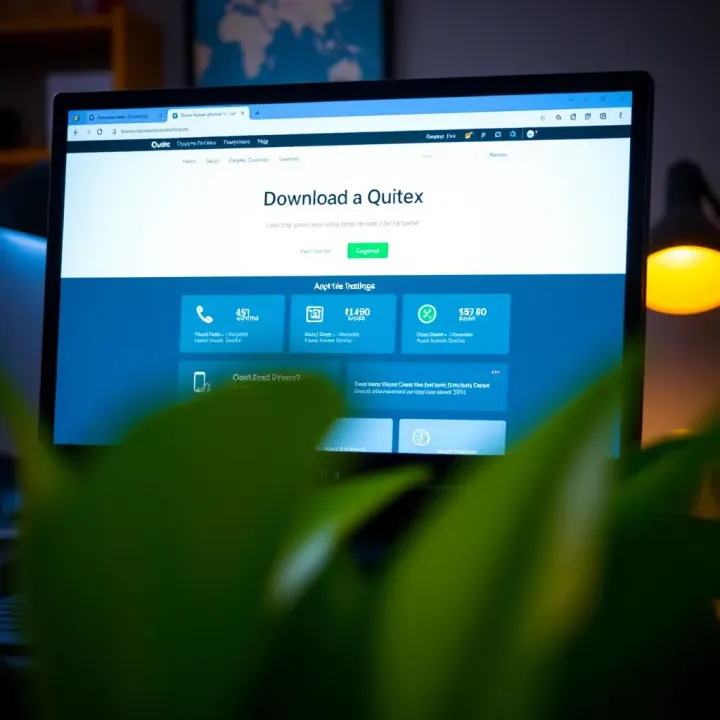
📥 Saiba como baixar e instalar o app Quotex no PC com dicas práticas, requisitos do sistema e funcionalidades essenciais para operar com segurança e eficiência.
Baseado em 12 avaliações